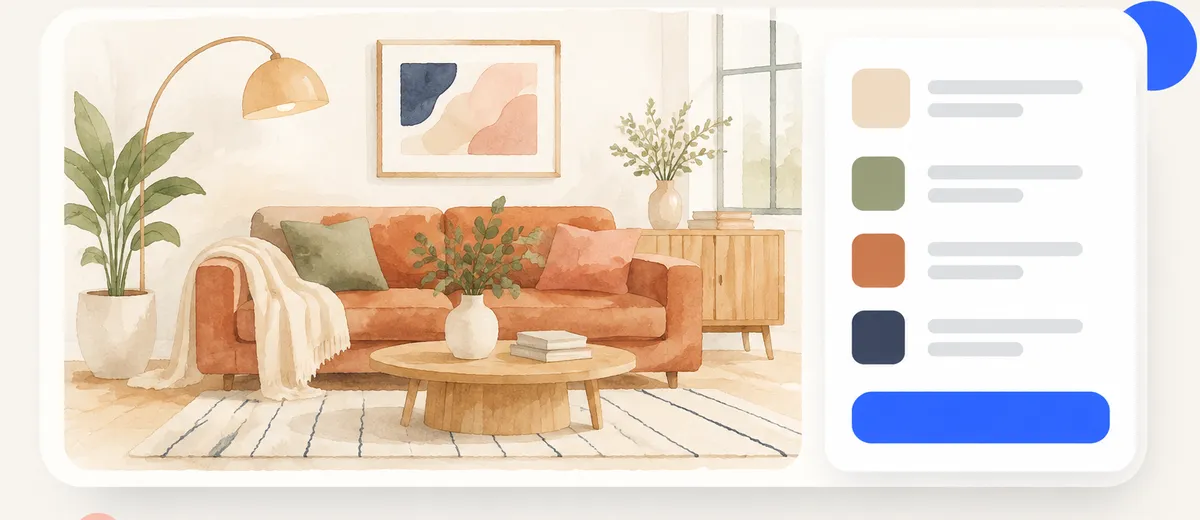
How to redesign your room from a photo
A step-by-step guide to redesigning a room from a single photo with AI — how to take the picture, write a good brief, and turn the result into a shopping list you can actually buy.
By the True Decorate team · Updated
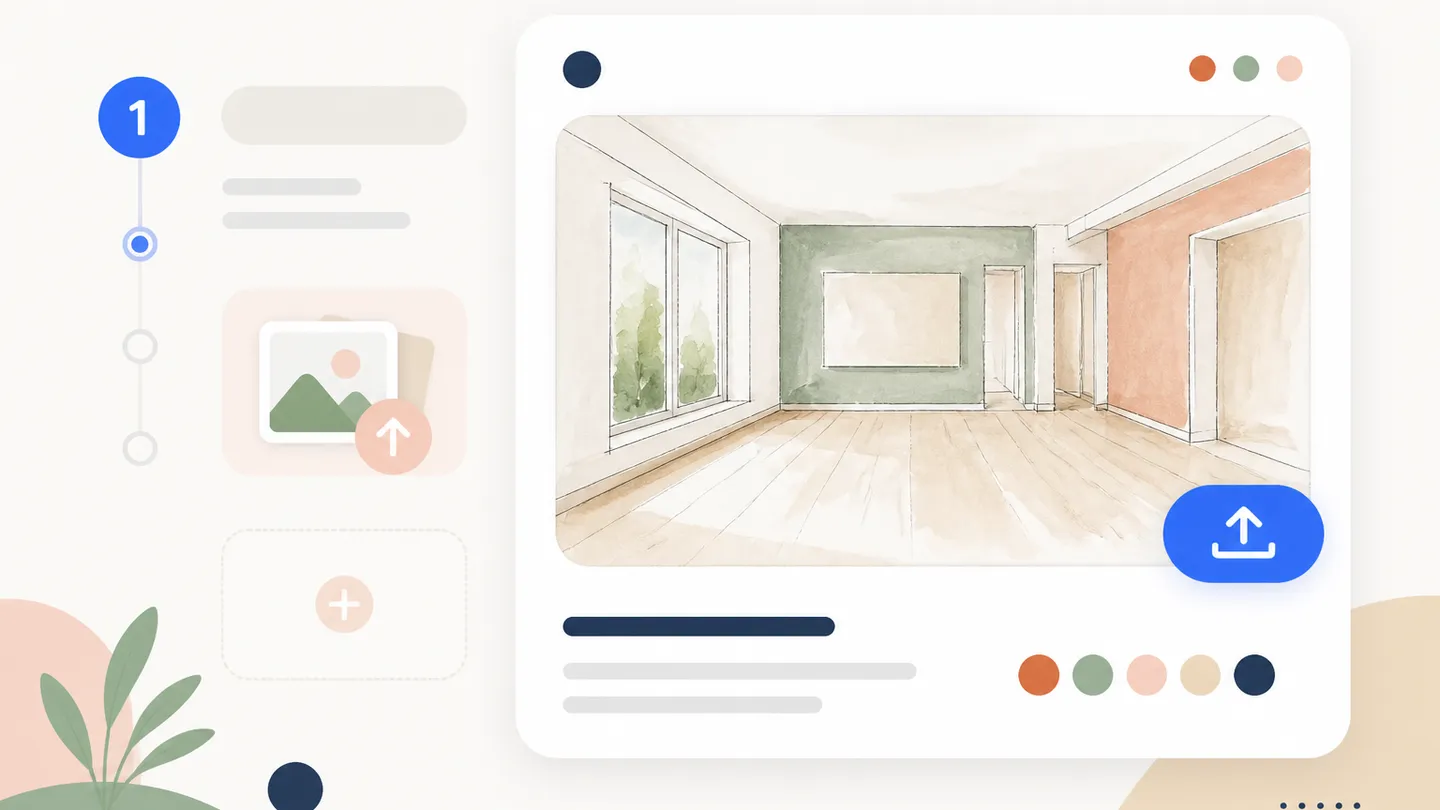
To redesign a room from a photo: take one wide, well-lit picture of the room, upload it to an AI interior design tool, describe the style and any constraints, then refine the result by locking the pieces you like and swapping the rest. With a tool that uses real products, the final design is also your shopping list.
Here is each step in detail.
Step 1: Take the right photo
The photo is the AI’s only view of your room, so it is worth thirty seconds of care.
- Shoot from a corner at about chest height, so you capture the floor and at least two walls.
- Use landscape orientation and the widest lens on your phone (often 0.5×).
- Shoot in daylight with the lights on, to avoid dark corners the AI has to guess.
- Include windows and doors — they define what the layout must respect.
- Clear temporary clutter. Anything left in frame may be read as part of the room.
Step 2: Tell the AI what the room is for
Pick the room type — living room, bedroom, kitchen-diner, home office — and add notes in plain language. Notes are where most of the quality comes from:
- Keep the window clear.
- Leave space for a desk on the left wall.
- Avoid open shelving.
- Needs to seat six for dinner.
Step 3: Write a style brief
A short brief beats a long one. Cover four things:
| Brief item | Example |
|---|---|
| Style | Scandinavian, Japandi, mid-century modern |
| Colour mood | Warm neutrals, cool greys, earthy greens |
| How much change | Subtle refresh → bold transformation |
| Where you shop | Your country and the stores you actually use |
Not sure which style fits? Our interior design styles guide compares the most popular looks side by side.
Step 4: Set your budget and rules
Give the AI a total budget and decide how full the room should be — a few statement pieces or fully furnished. Add practical rules such as pet-friendly materials or fast delivery, so you do not fall for a sofa that arrives in twelve weeks.
Step 5: Add the pieces you want to keep
If you already own a sofa you love, or found a lamp you want, add it first. In True Decorate you can search for items or paste a product link — those pieces are always included, and you choose whether the AI styles the rest around them or uses only your picks.
Step 6: Generate, then refine
Your first result is a starting point, not a verdict.
- Compare before and after to check the layout still works.
- Lock the items you like so they survive the next regeneration.
- Swap anything that is close but not right for a similar piece.
- Remove what you don’t need — the total updates as you go.
- Change the walls and floor if the finishes are holding the room back.
Step 7: Buy from the shopping list
With real products, the design is already a shopping list: each piece has a price, size, store and link. In True Decorate the total is grouped by store, so you can check out in a few clicks per retailer instead of hunting for lookalikes.
New to AI design tools? Start with our overview of how AI interior design works — or redesign your first room for free.
Frequently asked questions
What kind of photo works best for an AI room redesign?
A landscape photo taken from a corner at chest height, in daylight, with the floor, at least two walls and any windows in frame. Clear away clutter you do not want the AI to keep.
Can I keep some of my existing furniture?
Yes. Tell the AI which pieces to keep, or paste a product link for anything you already own or want. In True Decorate those pieces are always included and the rest of the room is styled around them.
How do I stay within budget?
Set a budget before generating and choose how full the room should be. True Decorate picks the remaining furniture within that limit and shows a running total broken down by store.
What if I only like part of the design?
Lock the pieces you like and regenerate. Locked items stay put while everything else changes. You can also swap a single item for a similar one or remove it.
Can I change the walls and flooring too?
Yes. In True Decorate paint and flooring are treated as real products, so the finishes in the render appear on your shopping list with local stores and prices.